01
Fast on long documents
Pages are rendered on a separate thread and the neighbours of the one you read are prepared in advance. “Save memory on long documents” frees the pages you have scrolled past.
PDF reader · Linux & Windows
Opens PDF, EPUB, XPS, CBZ, FB2 and SVG. On PDFs it writes standard annotations, fills in forms, reorders pages, shrinks files, sets passwords and checks digital signatures, and it shows the 3D models (U3D and PRC) embedded in them.
U3D and PRC models embedded in PDFs, on Linux and Windows
The 3D viewer
Technical datasheets, CAD exports and scientific papers carry U3D and PRC models. Montecristo draws them on the page, in an OpenGL viewer, without leaving the document. Each model is decoded in a separate process, so a damaged one cannot take the program down. Full variant only.
Drag to rotate, scroll to zoom, switch to pan from the toolbar. A zoom indicator shows the current scale.
The default view (first button of the toolbar), X, Y, Z and isometric views, plus the views saved in the PDF. Changing view is animated.
A menu in the 3D toolbar lists them: shaded, solid, transparent, four kinds of wireframe, two of vertices, bounding box.
The model is drawn with the colors, materials and textures stored in the file. The light can be switched on or off.
The model's parts are listed in a tree. Select one (or click it on the model), right-click, and isolate it or hide it; Show all brings everything back. A data sheet gives each part's name, triangle count, dimensions and volume. The model can be exported as .u3d or .prc.
Annotate · Ctrl+Shift+A
Every mark is a standard PDF annotation, so whoever receives the file sees it in their own reader.
Organize
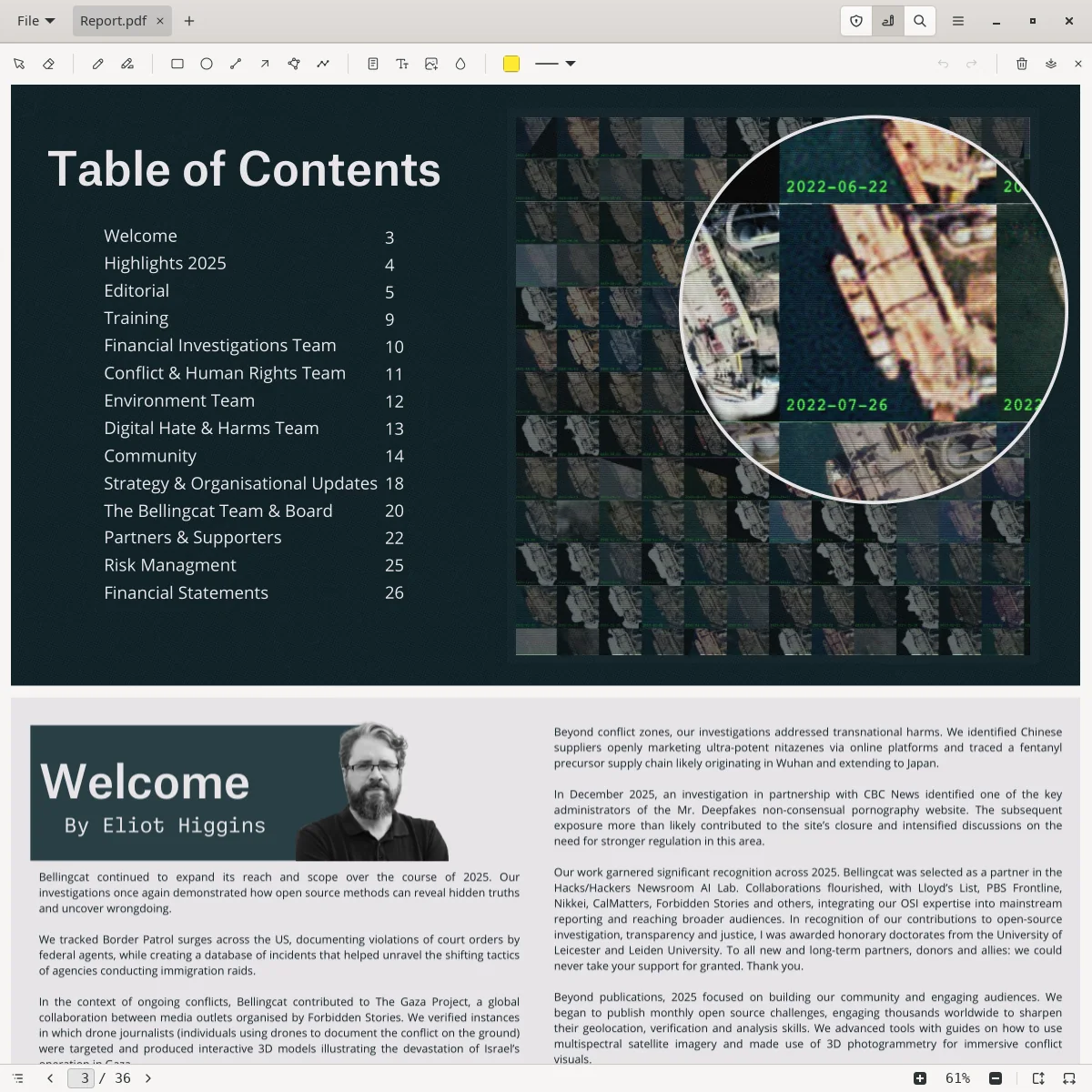
The document becomes a grid of thumbnails. Nothing changes in the file until you save. Full and Minimal, from version 0.3.11 on Linux and Windows.
Protect
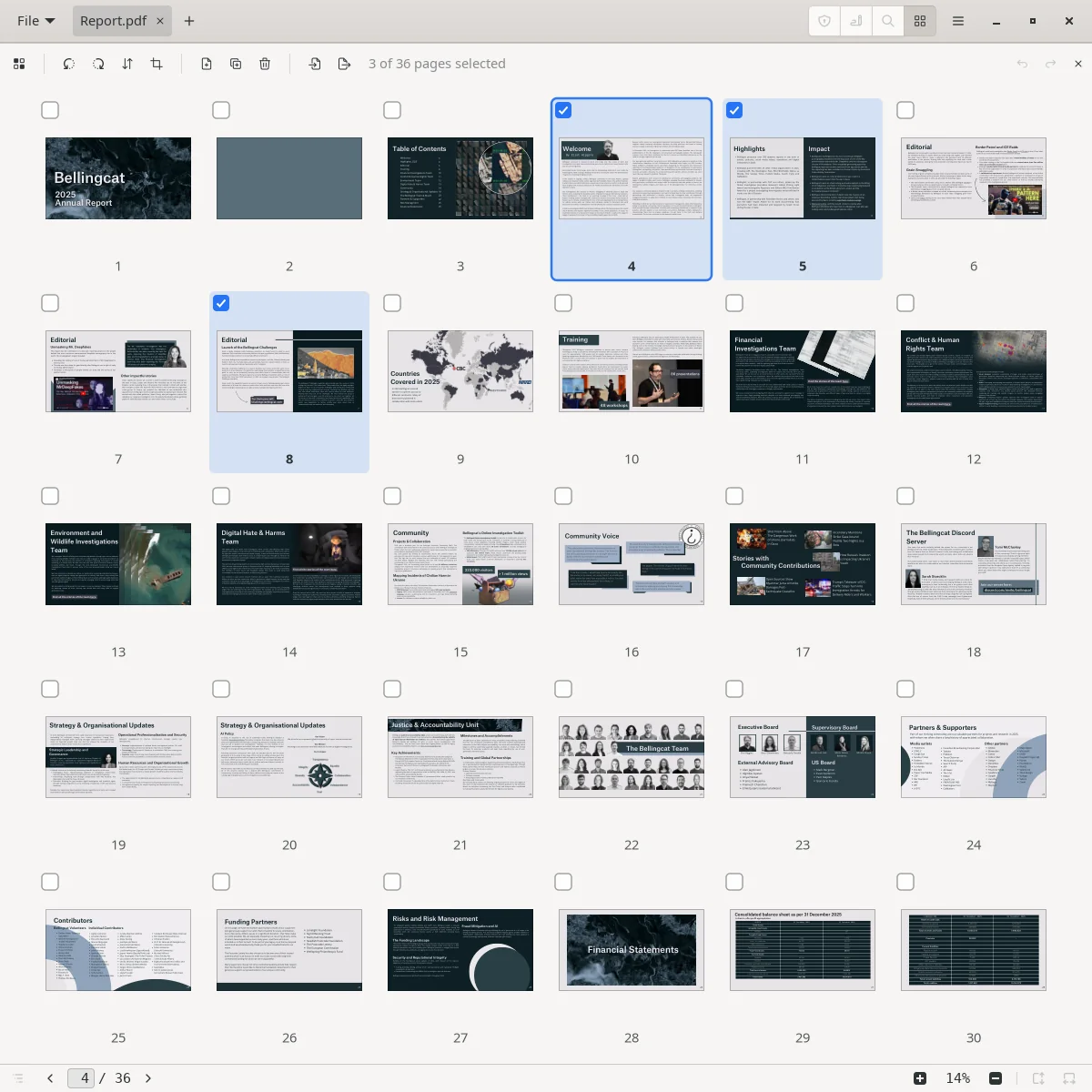
Open files you do not trust and read in public without leaving traces.
Search · Ctrl+F
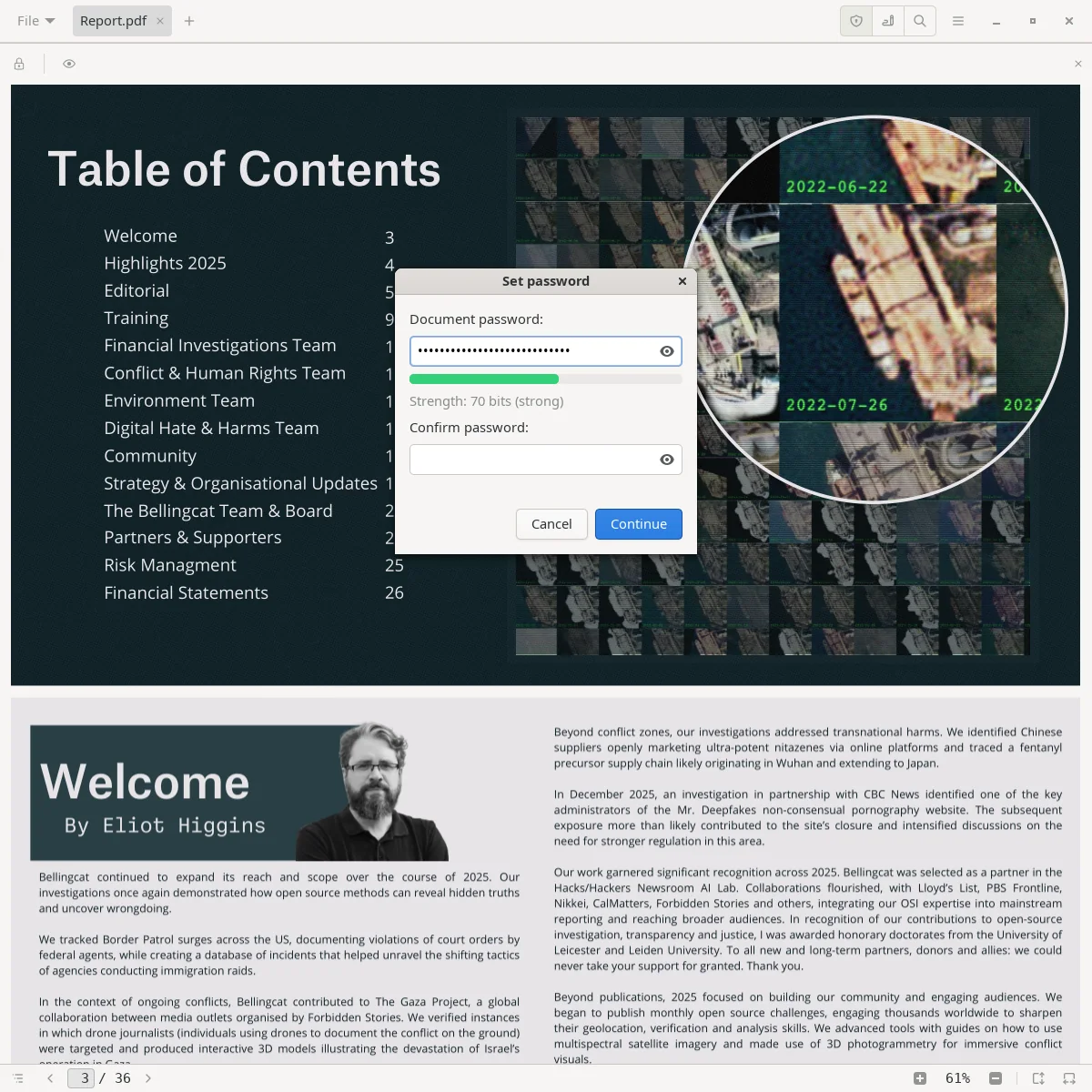
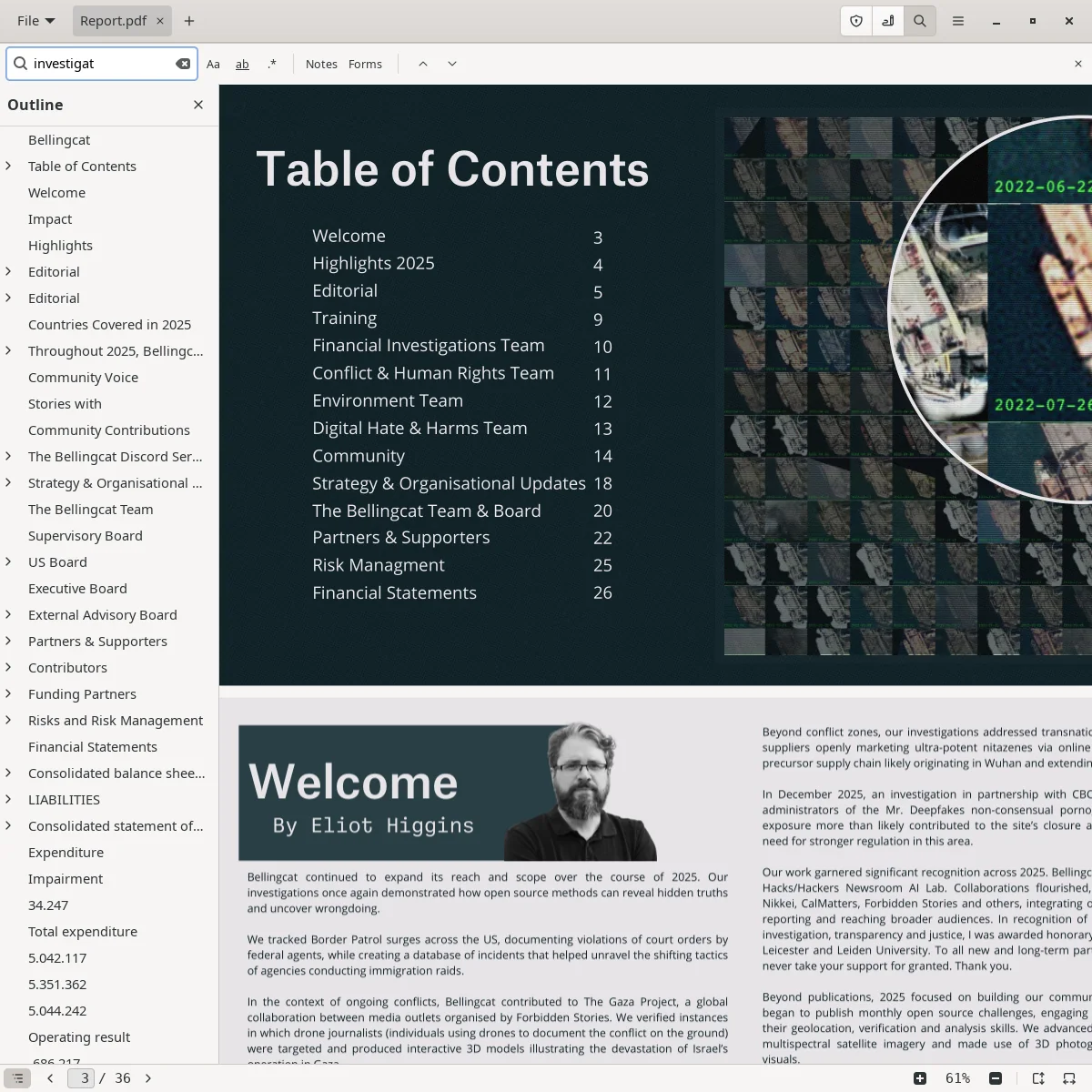
Search counts every match, and the outline on the side takes you to the section where they are.
And also
Checks the signatures of every PDF you open and keeps two questions apart: has the content changed, and do you trust the signer. EU qualified authorities are built in (872 certificate authorities, 1,078 timestamping), so Italian and other European signatures need no certificate to install. It does not create signatures. Which certificates?
Fills text fields, checkboxes, radio buttons, menus and lists, with Tab between fields. Field scripts for validation, calculation and formatting run unless you turn them off. It fills existing forms; it does not create them or send them anywhere.
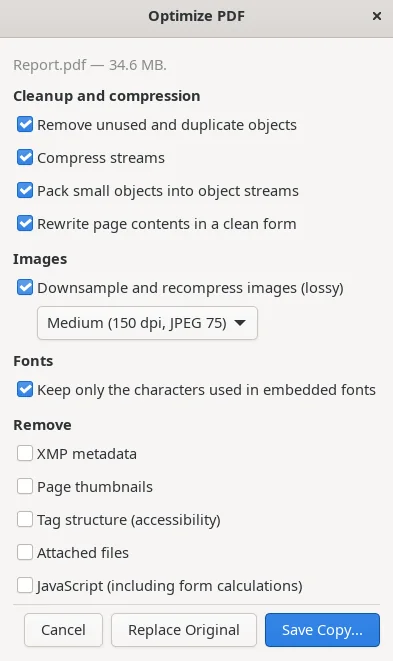
In the main menu, from version 0.3.11 on Linux and Windows. Makes a PDF smaller: cleanup and compression, images at High, Medium or Low quality, subset fonts, removal of metadata, thumbnails, attachments and JavaScript. Saves a copy, or replaces the original after you confirm, and shows the size before and after.
In the main menu. The PDF as indented text, editable object by object and saved incrementally.
PDF, EPUB, XPS, CBZ, FictionBook and SVG in one window. Several documents in tabs; drag a tab out and it becomes a window. Annotations, forms and passwords apply to PDFs only.
Fonts embedded in a PDF are drawn as stored. For fonts that are only named, Montecristo uses fonts built into the program, from the 14 PDF standard fonts to Noto fonts for over 150 writing systems. It never reads the fonts installed on the computer and never downloads any.
Design
Pages are rendered on a separate thread and the neighbours of the one you read are prepared in advance. “Save memory on long documents” frees the pages you have scrolled past.
GTK 4 on Linux; on Windows, the system title bar and window snapping. Not an Electron app or a web wrapper. English and Italian.
No telemetry, no accounts, no ads, no automatic updates. The only network request is the signature revocation check of the Full variant, which Settings › Security turns off; Minimal and Safe contain no network code. Settings and recent documents stay on your computer.
Download
Three editions of the same program. They differ in which code is compiled in; the table below lists what each one contains.
All features
Everything the program does: 3D models (U3D and PRC), forms with field scripts, the annotation tools, page organizing, Protected Mode, signature checking (with the online revocation check, which can be turned off), and links to other documents, files and web addresses with a permission per action.
Without 3D
Full without the 3D code and without network code. It keeps the annotation tools, page organizing, forms with field scripts, Protected Mode and signature checking; U3D and PRC models are not drawn, and revocation is read only from the proof inside the document.
Without active content
Minimal without forms, JavaScript, annotation tools, page organizing, links that leave the document and the list of opened documents; that code is not compiled in. Annotations already in the file stay visible but are not interpreted. Meant for documents you do not trust.
| Module | Full | Minimal | Safe |
|---|---|---|---|
| Reading, printing, 6 formats | Yes | Yes | Yes |
| Text search and selection | Yes | Yes | Yes |
| Annotation tools (markup, notes, drawing) | Yes | Yes | Excluded |
| Organize pages | Yes | Yes | Excluded |
| Optimize PDF | Yes | Yes | Yes |
| Annotations already in the file | Read and editable | Read and editable | Visible, never parsed |
| Opening password-protected PDFs (print, copy and edit restrictions not enforced) | Yes | Yes | Yes |
| Protected Mode | Yes | Yes | Excluded |
| Links within the document | Yes | Yes | Yes |
| 3D models (U3D, PRC) | Yes | Excluded | Excluded |
| AcroForm fields | Yes | Yes | Excluded |
| JavaScript in forms | Optional, on by default | Optional, on by default | Excluded |
| Links out of the document | Per-action permission | Per-action permission | Excluded |
| Online revocation check for signatures | On by default, can be turned off | Excluded | Excluded |
| Hardening | Always on | Always on | Always on |
The three install side by side, each with its own settings. For
example, Minimal can be the everyday reader and Safe the one you pick
in the right-click menu for an attachment you didn't expect. On Linux they are three packages
(montecristo, montecristo-minimal,
montecristo-safe); on Windows, one installer that lets
you pick any of them, or three portable folders.
For Ubuntu and Debian-based distros. Install with a double-click or apt.
Windows 10 and 11, 64-bit. One setup for all three variants: tick Full, Minimal, Safe or any mix (Full alone by default). It installs for your user only, no administrator rights, adds Start menu entries and offers each variant in “Open with” and in Settings › Default apps, where you choose your default PDF reader. Uninstall from Installed apps; run the setup again to add or remove variants.
The installer is not signed yet, so Windows may show “Windows protected your PC”: click More info, then Run anyway. Why?
Windows 10 and 11, 64-bit. Nothing to install: extract the folder anywhere and run montecristo.exe (montecristo-minimal.exe, montecristo-safe.exe) — no separate dependencies.
Every checksum above is also published as a file, so you can verify a
download without copying hex by hand:
SHA256SUMS ·
MD5SUMS.
Put the file next to what you downloaded and run
sha256sum --check --ignore-missing SHA256SUMS
(on Windows, Get-FileHash in PowerShell prints the SHA256).
It depends on the variant and the version.
In every variant there is no telemetry, no automatic update check and no account, and documents, settings and recent files stay on your computer. A web link in a document opens in your system browser, after you confirm the address; Settings has a switch for each kind of link. Trust in a signer never comes from the network: only from the certificates in your folder and the EU lists built into the program.
U3D and PRC models embedded in PDFs, the two formats used by technical datasheets and CAD exports, in the Full variant. U3D and PRC files are each decoded in a separate process (time limit 5 seconds for U3D, 15 seconds for PRC), so a damaged model cannot crash the reader. Not drawn yet: PRC models stored only as exact B-rep bodies, 3D lines and PMI annotations. U3D animations and 3D JavaScript are not supported.
Full has every module: 3D models, forms with field scripts, annotation tools, links with a permission per action and the online revocation check for signatures. Minimal is Full without the 3D code and without network code. Safe is Minimal without forms, JavaScript, annotation tools, links that leave the document and the list of opened documents; annotations already in the file stay visible but are not interpreted. In Minimal and Safe the excluded code is not compiled in, not just hidden from the menus. All three install side by side, each with its own settings.
Yes, for Windows 10 and 11, 64-bit, in two forms. The installer lets you pick Full, Minimal, Safe or any combination, installs for your user without administrator rights, and adds Start menu entries and an Installed apps entry to uninstall. The portable zip needs no installation: extract the folder anywhere and run montecristo.exe (montecristo-minimal.exe or montecristo-safe.exe for the other variants). Neither needs separate dependencies. There is no macOS version.
No. The installer isn't signed with a code-signing certificate yet, and SmartScreen warns about any unsigned program it hasn't seen many times. Click More info, then Run anyway. If you want to be sure the file is the one we published, compare its SHA256 with the checksum on this page before running it.
The ones you put in the trusted certificates folder (Protect bar → Open the trusted certificates folder), and the qualified certificate authorities of the EU national trusted lists, which are built into the program. Not your browser's or operating system's, not the Mozilla bundle (those certificates are approved for websites, not for signing documents), and not Adobe's list. The built-in lists were verified, when this version was built, against the six certificates the European Commission uses to sign the EU List of Trusted Lists, as published in the Official Journal of the EU (C/2026/1944):
D2:06:4F:DD:70:F6:98:2D:CC:51:6B:86:D9:D5:C5:6A:EA:93:94:17:C6:24:B2:E4:78:C0:B2:9D:E5:4F:84:74C0:64:1C:4F:7D:56:C4:31:B1:C9:24:74:2D:B7:FC:E9:C1:EE:F7:D7:FD:21:21:13:A2:76:84:86:B3:AB:CD:C5DF:7E:29:36:0C:34:B2:B8:D6:D5:F4:03:25:C1:D4:D1:2C:99:22:CE:CD:33:B7:40:76:74:A7:4B:2B:3C:A1:E5B6:3D:41:67:44:E7:09:8B:F9:EC:2C:AA:59:6A:93:BC:24:68:E3:7F:82:84:BA:65:EC:C0:61:71:1B:CB:AA:18E0:A6:20:FB:B6:74:73:62:BB:93:3A:C4:41:69:D6:76:A5:53:44:47:16:CF:5F:31:60:5F:12:A2:2B:83:96:B123:61:03:F0:3A:80:31:AE:8F:47:F9:05:9B:F8:DE:38:56:4C:DB:FE:BE:DD:E4:A5:97:D5:0F:89:80:AA:65:3BNames are the certificates' common names; the codes are their SHA-256 fingerprints. The built-in lists hold 872 qualified certificate authorities and 1,078 timestamping authorities from 30 of the 31 national lists (Latvia's could not be downloaded). Timestamping authorities are kept in a separate list and count for timestamps only. The app makes no network request to refresh them: the date of the lists is shown in the signature panel, and after six months the panel suggests installing a newer version. Outside the EU nothing changes: trust comes only from the certificates in your folder.
Yes. Every mark is saved as a standard PDF annotation. Save appends the changes to the end of the same file, leaving the original content untouched. If that isn't possible (for example, a PDF with a damaged structure), Montecristo by default replaces the file with a complete rewritten copy; you can turn that off in Settings. Save As and password-protected copies are written to a new file. Montecristo adds annotations and text watermarks; it does not edit the existing text or images of a page, merge or reorder pages, run OCR or create forms.